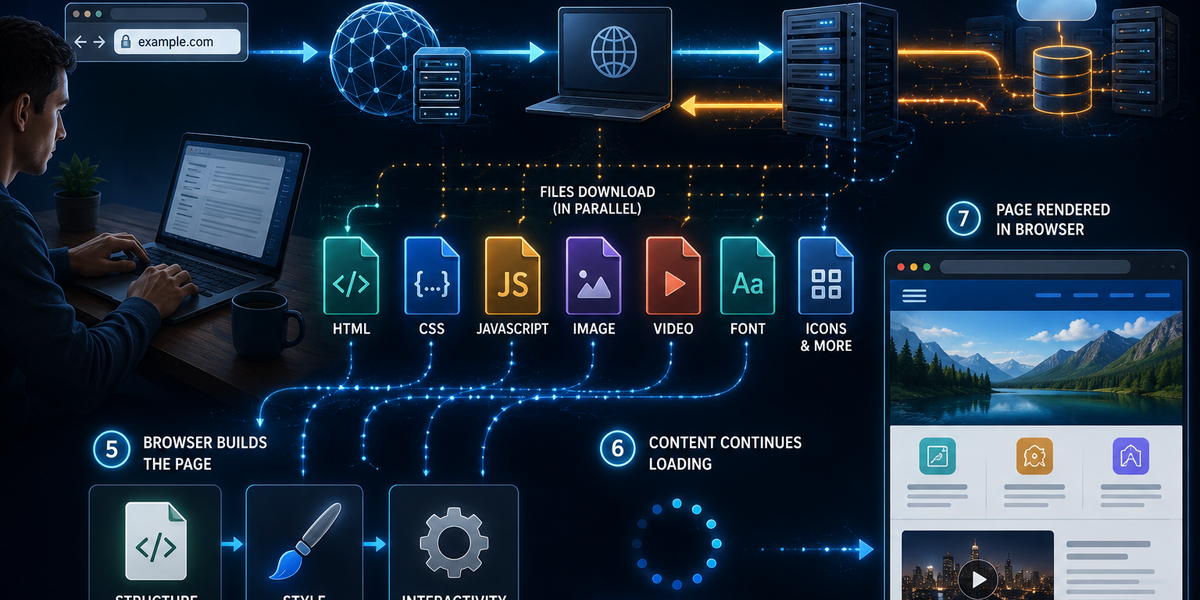
How a Website Actually Loads in Your Browser
Loading a website feels almost instantaneous.
You type a web address or click a link, and within seconds a fully designed webpage appears on your screen, complete with text, images, buttons, videos, and animations.
It seems simple—but behind the scenes, your browser performs dozens of complex tasks before the page is ready to use.
From locating the website’s server to downloading files and displaying the finished page, every visit follows a carefully coordinated process that happens in just a fraction of a second.
Here’s what actually happens when a website loads in your browser.
Step 1: You enter a web address
The process begins when you type a website address—also called a URL (Uniform Resource Locator)—into your browser or click a link.
Your browser immediately knows which website you want to visit, but it doesn’t yet know where that website is located.
To find it, the browser first needs an address that computers understand.
That’s where the Domain Name System comes in.
Step 2: The browser finds the website’s server
Humans prefer names like example.com, but computers communicate using numerical IP addresses.
To convert the website name into the correct address, your browser asks the Domain Name System (DNS).
DNS works much like the internet’s phone book.
It quickly translates the website name into the IP address of the server hosting the website.
Once the browser receives that address, it knows exactly where to send its request.
This lookup usually takes only milliseconds.
Step 3: Your browser requests the webpage
Now that it knows where the website lives, your browser sends a request to the web server.
In simple terms, it says:
“Please send me the homepage for this website.”
The server receives the request, processes it, and prepares the files needed to display the page.
For many websites, this also involves retrieving information from databases, checking user accounts, or generating personalized content before anything is sent back.
Step 4: The server sends the website files
The server doesn’t send a finished webpage like a photograph.
Instead, it sends many separate files that your browser must assemble.
These typically include:
- HTML files that define the page’s structure.
- CSS files that control colors, fonts, and layout.
- JavaScript files that add interactive features.
- Images, icons, videos, and other media.
A single webpage may require dozens—or even hundreds—of separate files before it’s fully loaded.
Modern browsers download many of these files simultaneously to speed up the process.
Step 5: The browser builds the page
Once the files begin arriving, your browser starts putting everything together.
It first reads the HTML to understand the basic structure of the page.
Next, it applies the CSS to determine how everything should look.
Finally, it runs the JavaScript, which enables interactive features like menus, search boxes, animations, forms, and live updates.
As more files arrive, the page gradually becomes complete.
This is why you sometimes see text appear before images finish loading.
Step 6: Images and other content continue loading
Even after the main page becomes visible, your browser often continues working in the background.
Large images, videos, advertisements, fonts, maps, and embedded content may still be downloading.
Many websites also use a technique called lazy loading, where images farther down the page aren’t downloaded until you scroll closer to them.
This helps pages load faster while reducing unnecessary data usage.
It’s one reason modern websites feel much more responsive than they once did.
Why some websites load faster than others
Not all websites are equally fast.
Several factors affect loading speed, including:
- Your internet connection
- The performance of the web server
- The number of files being downloaded
- Image sizes
- Website design
- Browser performance
- Network congestion
A simple webpage with mostly text may load almost instantly.
A complex page containing videos, animations, advertisements, and interactive features naturally requires more time.
Many website developers spend considerable effort optimizing pages to improve loading speed because faster websites generally provide a better user experience.
Your browser remembers some files
To make future visits faster, browsers often store certain website files locally on your device.
This process is called caching.
Instead of downloading the same logo, icons, fonts, or design files every time you visit, your browser can often reuse copies it already has.
That’s why websites you’ve visited before frequently load much faster than ones you’re opening for the first time.
Occasionally, clearing your browser’s cache becomes necessary if stored files become outdated or corrupted.
Hundreds of actions in just seconds
Although opening a website feels effortless, your browser performs an extraordinary amount of work behind the scenes.
It translates website names into server addresses, sends requests across the internet, downloads multiple files, assembles the page, applies styles, runs scripts, loads images, and prepares everything for interaction.
Most of these tasks happen so quickly that users never notice them.
The next time you click a link, remember that your browser isn’t simply “opening” a webpage.
It’s coordinating dozens of technologies across computers located around the world—all so you can view a website in just a few seconds.